Resetting a Simpled Smart Lock
Step-by-step guide to factory reset and re-add your Slim Series lock to the app
Original HubSpot URL: https://learn.simpled.uk/resetting-a-simpled-smart-lock
factory reset will:
Remove all users and settings
Restore the lock to factory default
Require you to set up the lock again from scratch
⚠️ Only perform a reset if required. All saved data will be erased.
Step-by-Step Instructions
Step 1: Access the Reset Button
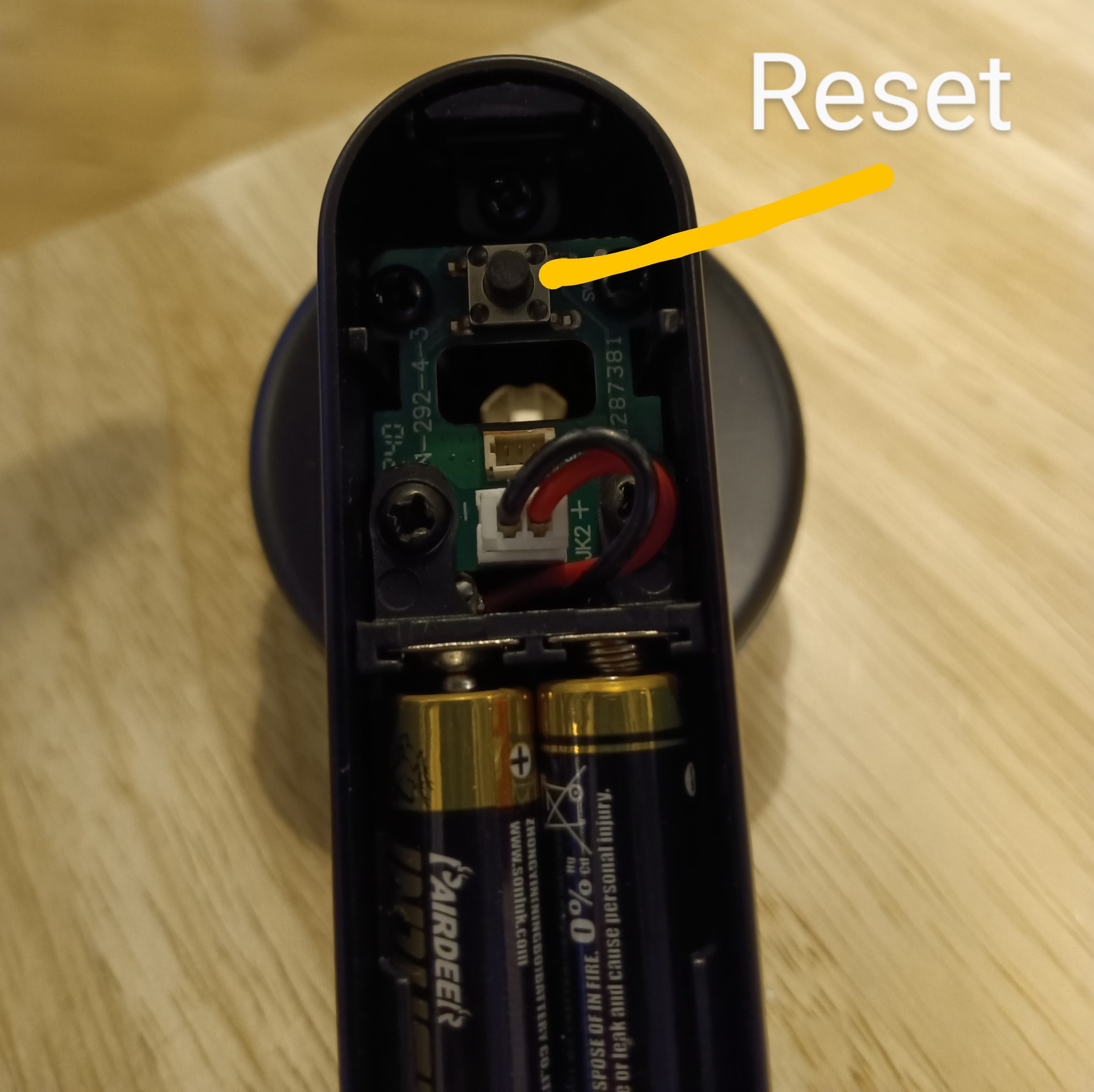
Remove the battery cover on the indoor panel
Locate the white connector cable
Gently move the cable to one side
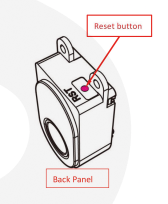
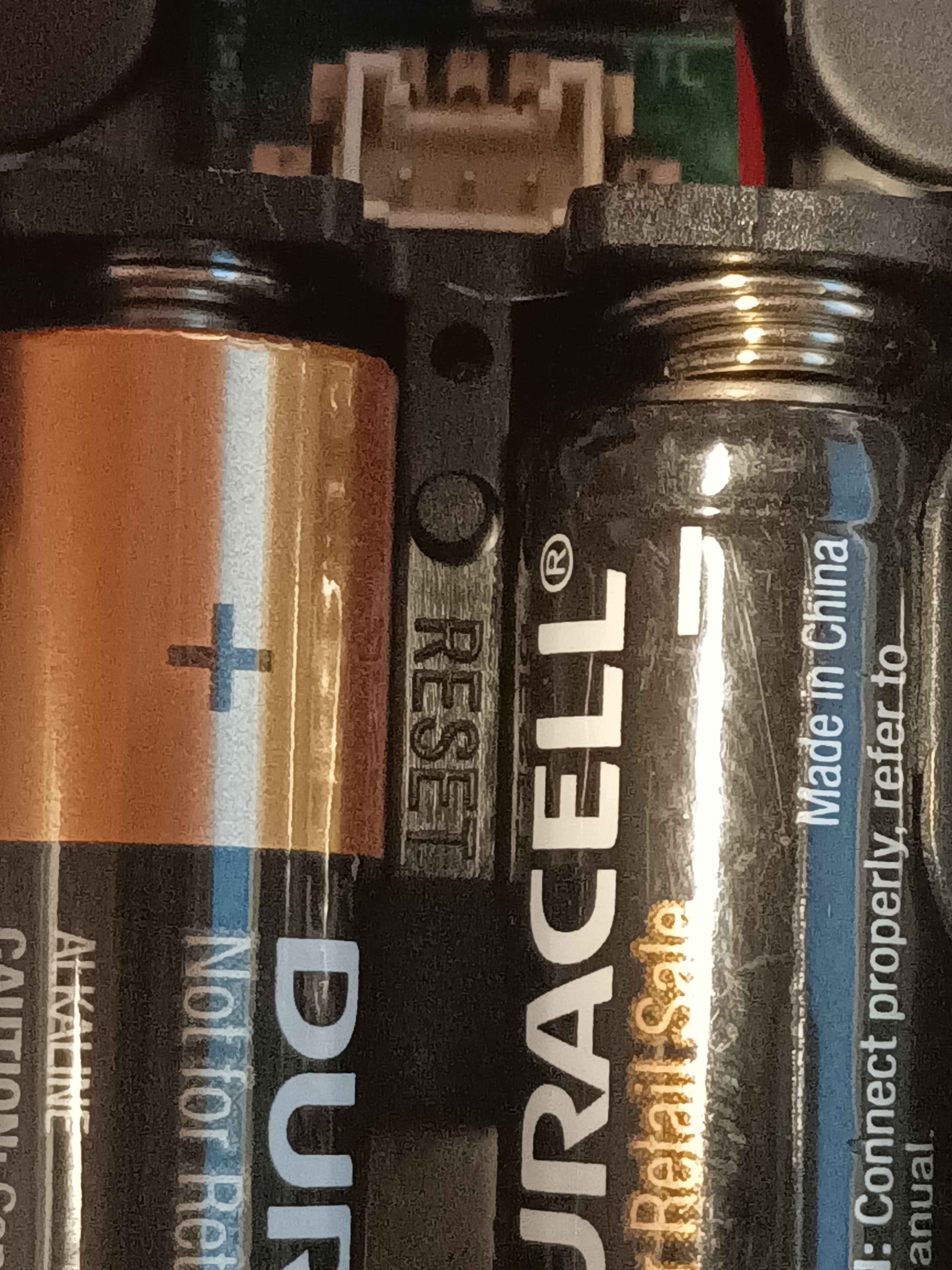
Locate the reset button between the batteries
Step 2: Perform the Reset
Press and hold the reset button using a pen or similar object for 2 seconds
Wait for the voice prompt:
→ “Please add administrator.”
✅ This confirms the reset is complete
Step 3: Set Administrator Code
On the keypad, enter:
0 0 0 #
Step 4: Add the Lock to the App
Open the app
Tap Add Lock → All Locks
Lightly touch the keypad to activate Bluetooth
Step 5: Complete Pairing
Wait for the lock to appear in the list
It should appear in black text (not greyed out)
Select the lock
Tap the Add (+) button
Step 6: Test the Lock
Once added, tap the blue padlock icon in the app
The lock should unlock successfully
If It Does Not Work
If the lock does not reset or unlock:
Repeat the reset steps carefully
Ensure the reset button is held for the full 2 seconds
Confirm the keypad is activated when adding the lock
📩 If the issue continues:
Record a short video showing the problem
Send it to: [email protected]
SF
Leverline
DFF Inside reset button