Step-by-Step Guide for Using the Simpled Door Sensor (DA-SP)
**The Simpled DA-SP Door Sensor is a compact and user-friendly device designed to enhance your home security system. Follow these instructions to install, pair, and manage your door sensor effectively. **
Original HubSpot URL: https://learn.simpled.uk/step-by-step-guide-for-using-the-simpled-door-sensor-da-sp
Installation
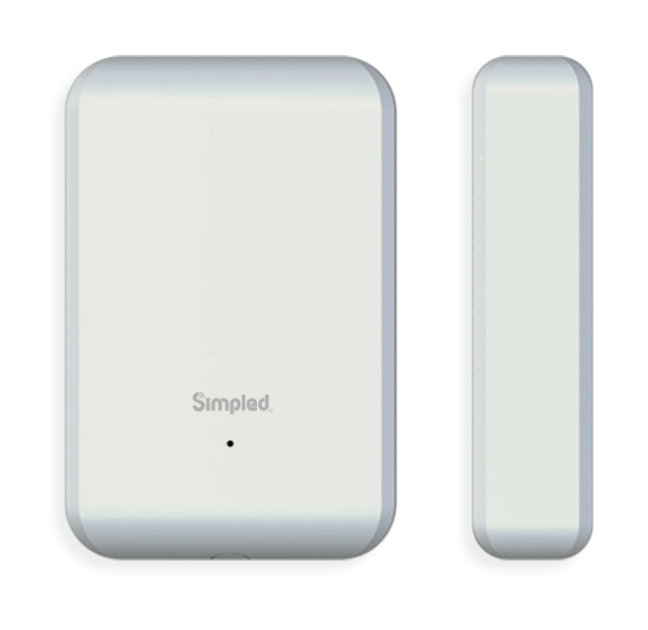
Screenshot 2025-01-06 at 15.28.36
2. Installation
Materials Needed:
Simpled Door Sensor
Adhesive tape (included in the package)
Smartphone with the TTLOCK app installed
Steps:
Prepare the Door Sensor:
Remove the shell of the door sensor.
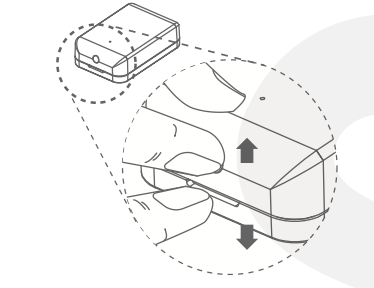
Screenshot 2025-01-06 at 15.42.53
Insert the CR2032 battery if not already installed.
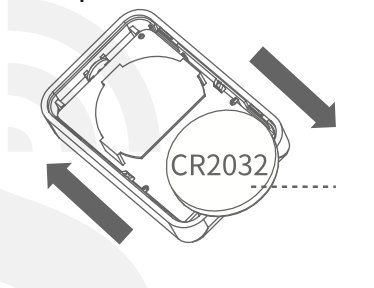
Screenshot 2025-01-06 at 15.43.01
Choose the Door Opening Direction:
Decide whether your door opens to the left or right.
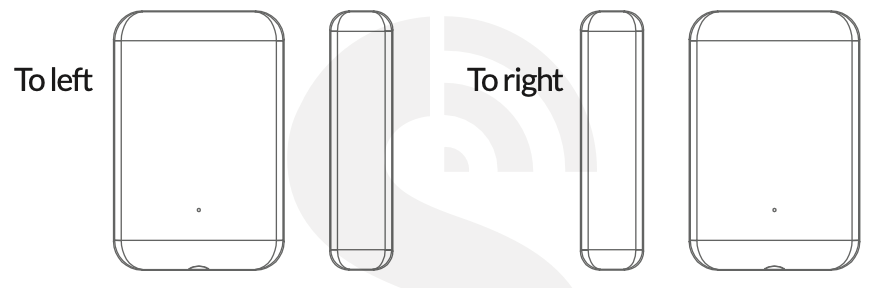
Screenshot 2025-01-06 at 15.42.18
Clean the Installation Surface:
Wipe the door surface and frame to ensure a strong adhesive bond.
Attach the Sensor:
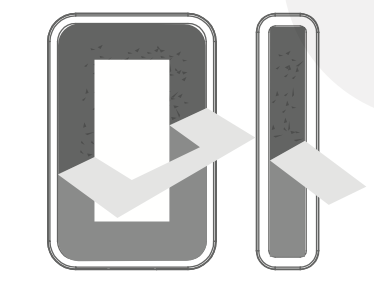
Peel off the adhesive backing.
Screenshot 2025-01-06 at 15.42.42
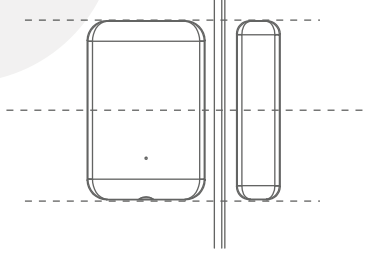
Align the sensor parts and stick them securely on the door and the door frame. Ensure the gap between the two parts does not exceed 22mm.
Screenshot 2025-01-06 at 15.42.36
Reinstall the Shell:
Once the sensor is installed, snap the shell back into place.
Screenshot 2025-01-06 at 15.32.44
3. Pairing the Sensor with the App
Activate the Simpled App:
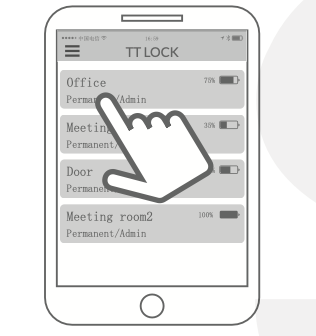
Open the app on your smartphone and select the lock you want to pair the sensor with.
Screenshot 2025-01-06 at 15.33.28
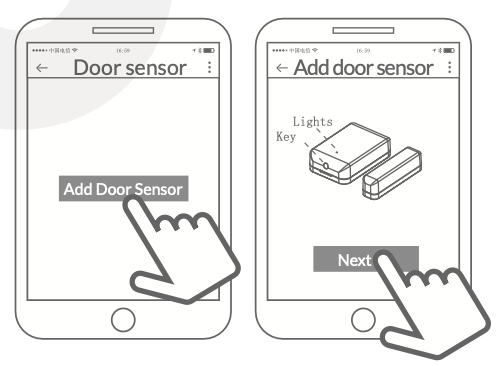
Initiate Pairing:
Tap on
Settings, thenDoor Sensor.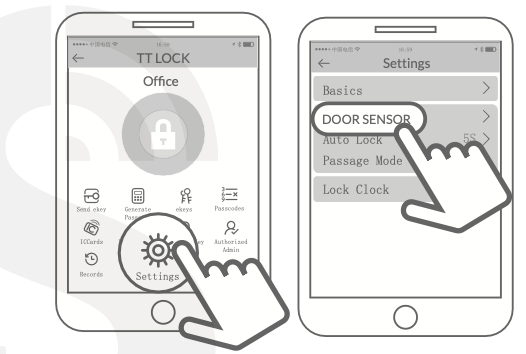
Screenshot 2025-01-06 at 15.33.38
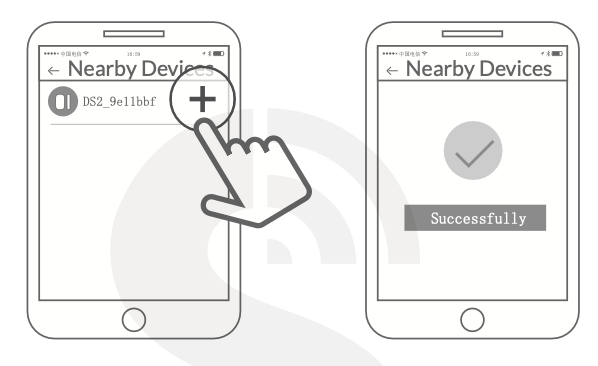
Press the "+" button and follow the prompts.
Screenshot 2025-01-06 at 15.37.12
Screenshot 2025-01-06 at 15.33.52
Reset if Necessary:
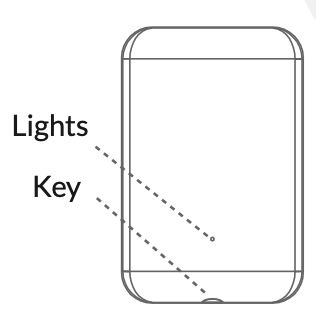
If the sensor fails to pair, press the reset button on the device for 10 seconds. The light will turn on for 1 second, indicating a successful reset.
Retry the pairing process.